You arranged everything: browser on the left, Slack top right, notes below it. Then you grabbed your MacBook for a meeting, came back, plugged the cable in, and every window is crammed onto one screen in a pile. Nothing is broken. This is what macOS does on plenty of Macs, and it is fixable on many of them. Here is what is actually happening and what you can do about it.
What happens when a display disappears
macOS thinks of your screens as one large coordinate space. Every window has a position inside it. When you unplug a monitor (or your dock drops for a moment), that part of the coordinate space vanishes, and macOS faces an immediate problem: windows cannot live on a display that no longer exists. So it rescues them, moving every stranded window onto the screens that remain, squeezing them to fit if it must.
The rescue is the easy half. The problem is the return trip. When you plug the monitor back in, macOS restores the display arrangement (which screen sits to the left of which), but it does not restore the windows. The system keeps no memory of which window sat where in that setup. Your carefully arranged desk is gone, and the pile stays a pile.
Why sleep and docks trigger it too
The part that feels most unfair: it happens even when you never touch a cable. Many Thunderbolt and USB-C docks, hubs and monitors briefly drop their video connection when the Mac sleeps, wakes or changes refresh rates. To macOS a momentary drop is indistinguishable from you yanking the plug: display removed, windows rescued, display returned, no memory. That is why you can walk away from a fully wired desk, come back, and still find everything scrambled. The fixes for that case, from display sleep to the monitor setting behind it, are in why Mac windows move after sleep.
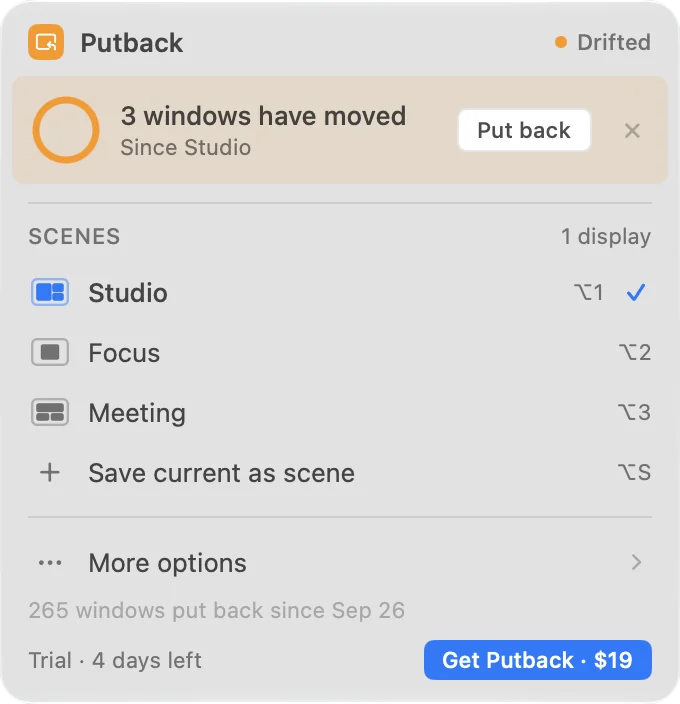
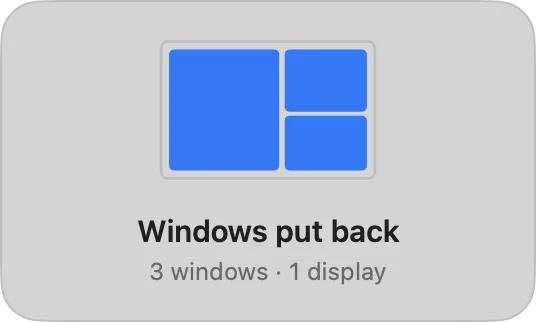 Displays return, Putback puts them back
The two settings that decide it (for most setups)
We spent real time chasing the wrong answer. The first theory was that macOS recognizes a returning display by an identity computed from its EDID data (vendor, product, serial number), and that monitors without a unique serial in that identity can never be recognized. It fit some of what we saw. Then real-world reports broke it: monitors with a zeroed serial, including Apple's own Thunderbolt Display, restore windows reliably for their owners, year after year. Whatever explains the divide, it was not that.
So we tried something more direct: a side-by-side comparison of two Macs, one that had never restored a single window (filmed, so we mean never) and one that always did. The difference was not the monitor. It was two settings in Mission Control. We changed those two settings on the machine that never restored, logged out and back in, and it started restoring windows to the reconnected display exactly like the other one. Same Mac, same monitor, same cable.
If you want to try it: open System Settings > Desktop & Dock > Mission Control. Turn on "Displays have separate Spaces." Turn off "Automatically rearrange Spaces based on most recent use." Log out and back in for it to take effect. Many Macs have these set differently out of the box, or have had them changed at some point, which is a plausible reason the same macOS version behaves so differently from one Mac to the next.
The tradeoffs of the fix
"Displays have separate Spaces" is not free. Windows can no longer span across two displays: a window (or a full screen app) lives on one display and stays there instead of stretching across both. Each display gets its own set of Spaces and its own menu bar rather than sharing one, and Mission Control shows each display's Spaces separately too. Some people already work this way and will not notice a difference. Others turn this setting off specifically so they can span windows across displays or keep one unified set of Spaces, and turning it back on undoes that. "Automatically rearrange Spaces" off just means your Spaces stop reordering themselves by how recently you used them, their order stays fixed instead, a smaller tradeoff by comparison.
Even on a Mac configured exactly this way, we still hear about scrambles: a dock that drops its connection during sleep or wake, a port change, and certain apps (Electron apps have come up more than once) that do not always take the same path back as native ones. That is the part nobody, us included, has fully mapped yet. If you want to help map it, the checker page is where we are collecting real reports of what actually happens on real setups.
Why Apple has not fixed it
Windows belong to apps, not to the system. Each app owns its window frames, and macOS is conservative about moving them around behind an app's back. Some apps remember their own window positions between launches, but that memory is per app and knows nothing about which display configuration you were in. There is no system service that says: this is the desk-with-two-monitors layout, this is the laptop-only layout, put things back accordingly. Recent macOS releases have not changed this. Windows 11, by contrast, has a checkbox for it; if that is what you are used to, see the Mac version of remember window locations.
What you can do about it
Start with the settings fix: "Displays have separate Spaces" on, "Automatically rearrange Spaces" off, then log out and back in. On many setups that is the entire fix, with the tradeoffs above. If it solves it for you, you genuinely do not need anything else, Putback included.
Reduce the triggers: keeping the same display as your main display, using the same ports, and updating dock firmware can reduce the spurious disconnects that cause scrambles even on well-configured setups. Free snapping tools like Rectangle and Magnet will not restore anything automatically, but they make a manual re-arrange faster on the days it is still needed. Rectangle Pro and Moom go a step further, reapplying a layout you saved yourself. We compared the categories in detail in Putback compared with every Mac window tool.
A window manager built on memory: Putback exists for the part the settings fix cannot reach, and for a part no setting was ever going to cover. It restores your exact layout in every display configuration without changing how Spaces or full screen behave, keeps a separate memory per setup, and puts everything back in about 0.4 seconds when your displays change. That covers the case where the settings fix is not enough, the timing scrambles still get through, or the tradeoffs are not acceptable for how you use your Mac. Past that it does something macOS has no equivalent for at all: you can name any arrangement as a Scene and rebuild it with one hotkey, apps and all, with no display change involved. See saving window layouts on a Mac, or our guide to multi-monitor setups on Mac if you regularly switch between a laptop only setup and one or more external monitors.